Getting started
Sharing and access
Access in DomoModeler comes from three places: your role in the organization, the visibility of the product something lives in, and any explicit shares on the product, domain, or model.
Organization roles
| Role | What it means |
|---|---|
| Owner | Full control, including billing, deleting the organization, and every product, domain, and model in it. |
| Admin | Can create and manage products, domains, and members. |
| Member | Can work in what they can see. |
Roles are set from Members in the user menu (owners and admins only).
Product visibility
A product's visibility decides who in the organization gets in at all:
- Everyone in the organization: every member can work in the product. Adding a person on top only gives them a say in the product itself.
- Team: only the people who are added.
- Private: nobody can be added, and anyone previously added is ignored while it is private. The organization's owners and admins can still see it. Private means private from your colleagues, not from the organization.
Narrowing visibility keeps existing memberships rather than deleting them, so widening it again restores who had access before.
Sharing something
Products, domains, and models each have a Share entry in their ⋯ menu. In the dialog you name a person and choose:
- As editable: they can change the content.
- As view only: they can open it and read it, but not change it.
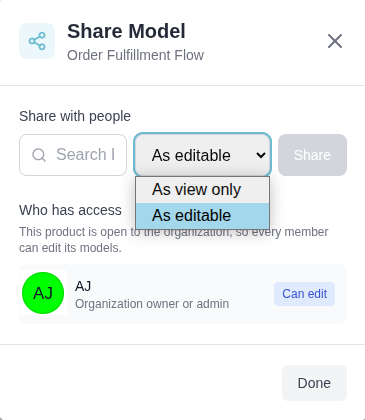
Sharing defaults to editable, because in a product that is already visible to the whole organization, sharing "view only" would demote the colleague you were trying to include.
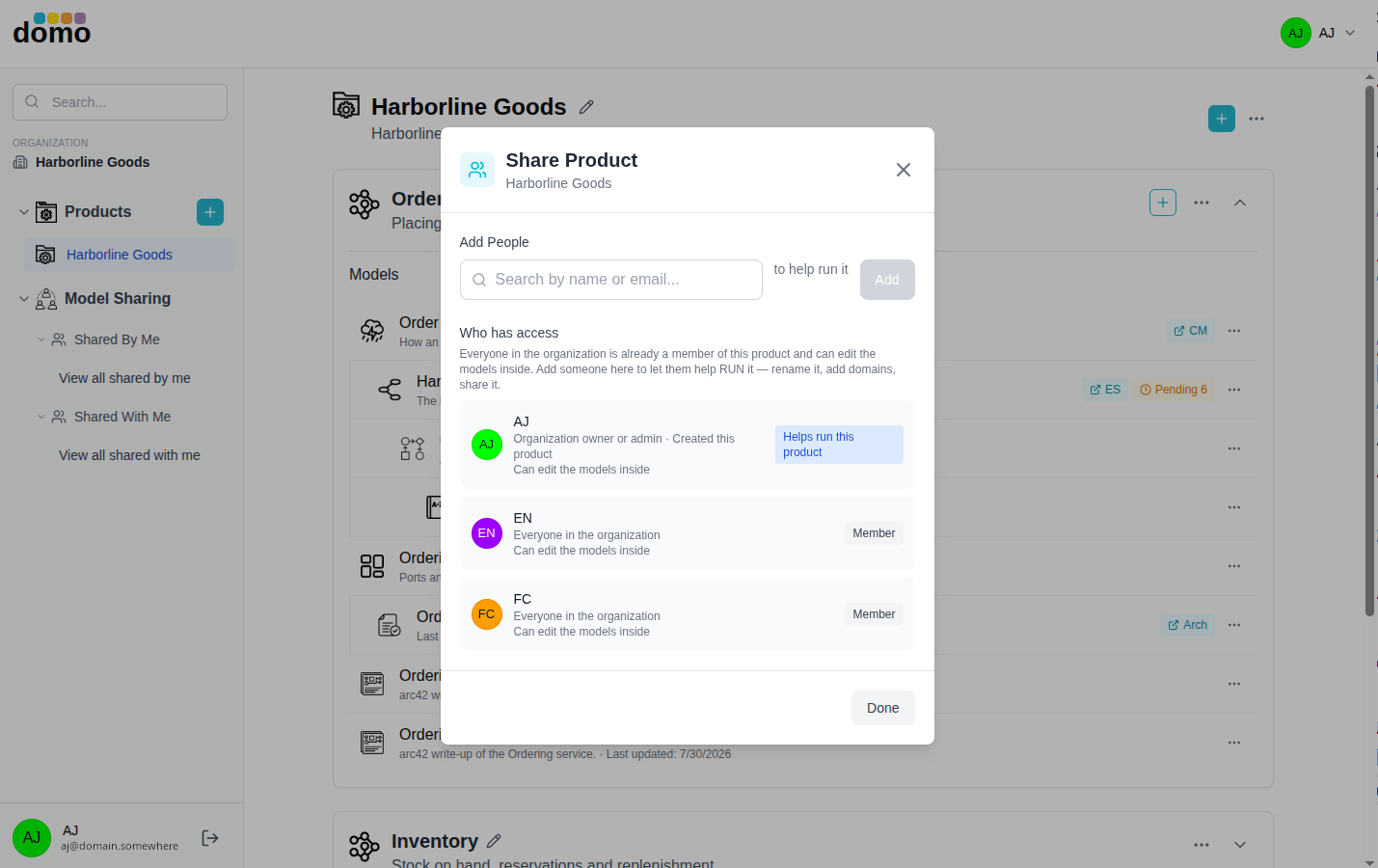
Who has access
Every share dialog includes a Who has access panel that lists each person along with the reason they have access. The reason is one of these:
- Everyone in the organization: the product is visible to the whole organization, so every member has access to it without having been added to anything.
- Organization owner or admin: their role reaches everything in the organization.
- Created this product, Created this domain, or Created this model: member users retain access to what they create.
- Member of this product or Member of this domain: they were added there, which also reaches what is inside it.
- Shared with them directly: a share on this model alone.
A person can hold more than one of these at once, and all of them are shown.
Access is worked out most permissively; that is, if any one grant gives you edit, you can edit. A view-only share can therefore never take away edit access that some broader grant already gave you. For example, if you have edit access on the product and/or domain, sharing a model within to view-only does not remove your edit access.
Grants that are explicit on the thing you are looking at can be revoked right there. Grants that come from somewhere else (a product membership, say) are marked as such. Such grants must be changed where they were given.
Read-only models
You may open a model and find it in view only mode, shown by a pill in the model header. That happens when:
- the model was shared with you as a viewer and nothing else grants you edit, or
- your organization's subscription is past due, which puts everyone into read-only until it is settled.
In read-only mode the whole editor is consistent about it. The palette, drag, delete, clipboard, undo, and the property dialog boxes all decline politely rather than failing at save time.
Note: When you are editing a model in its editor, an element that a colleague is editing in the same model is entirely a different case. That one element is locked to them, which is indicated in your editor by a padlock and a disabled mask on that element. The rest of the model stays editable for you, so the model is not in view-only mode and no pill appears. See Collaboration and saving.