Getting started
The dashboard
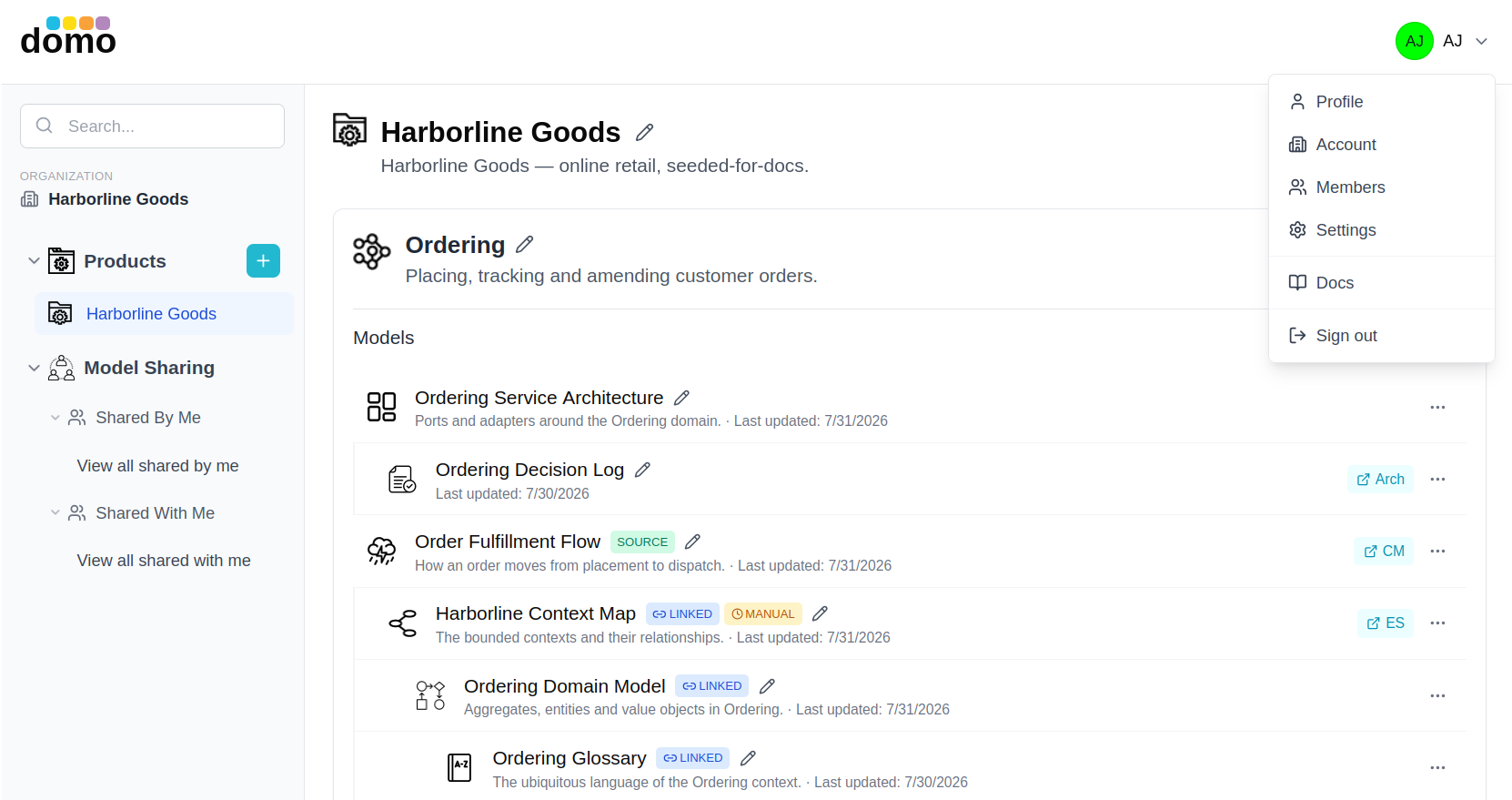
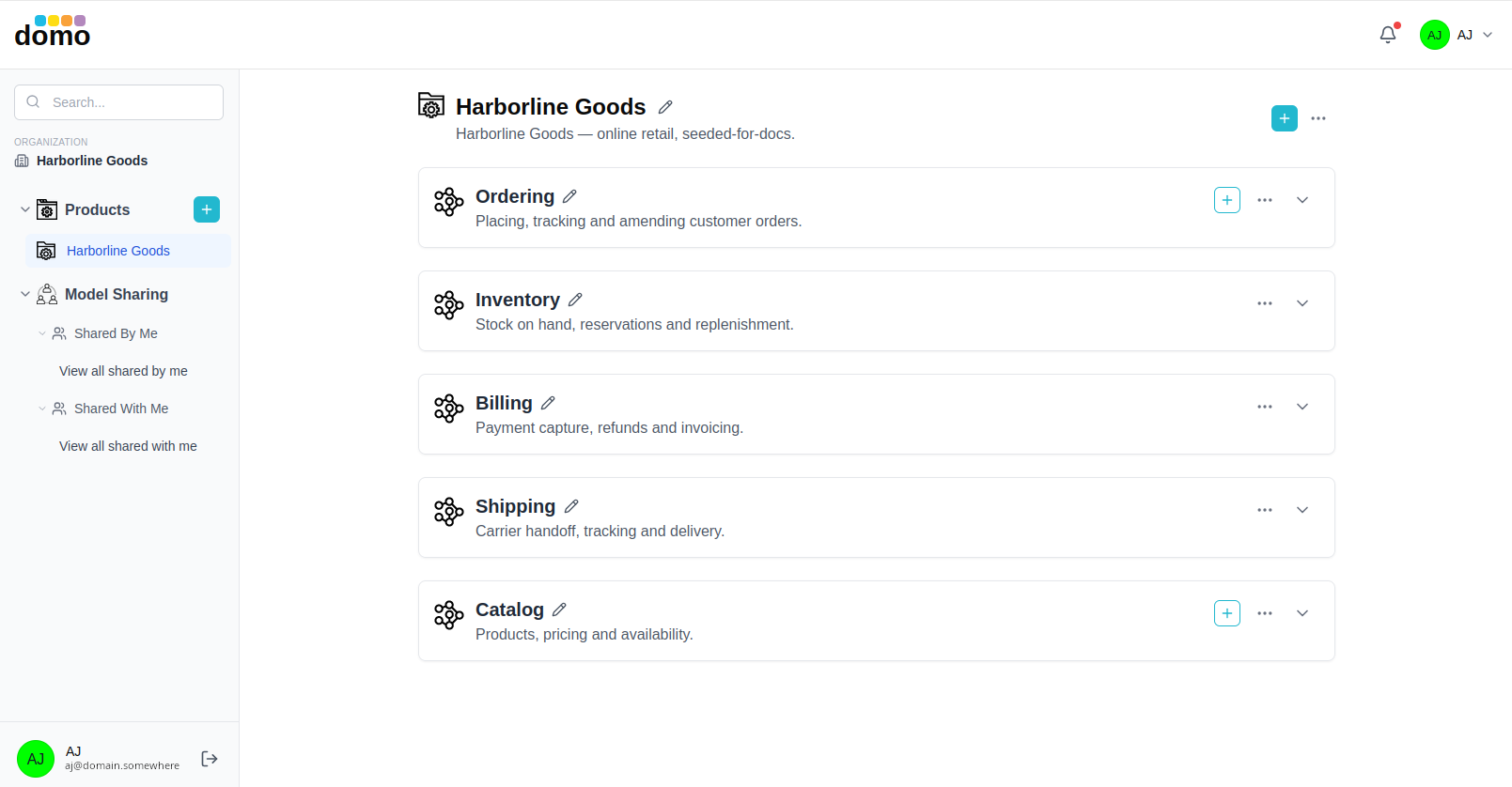
The dashboard is where you organize work and open models. It has three parts: the sidebar, the content area, and the user menu in the top-right corner.
The sidebar
- Search: filter what you are looking at.
- Organization: the organization this browser tab is working in.
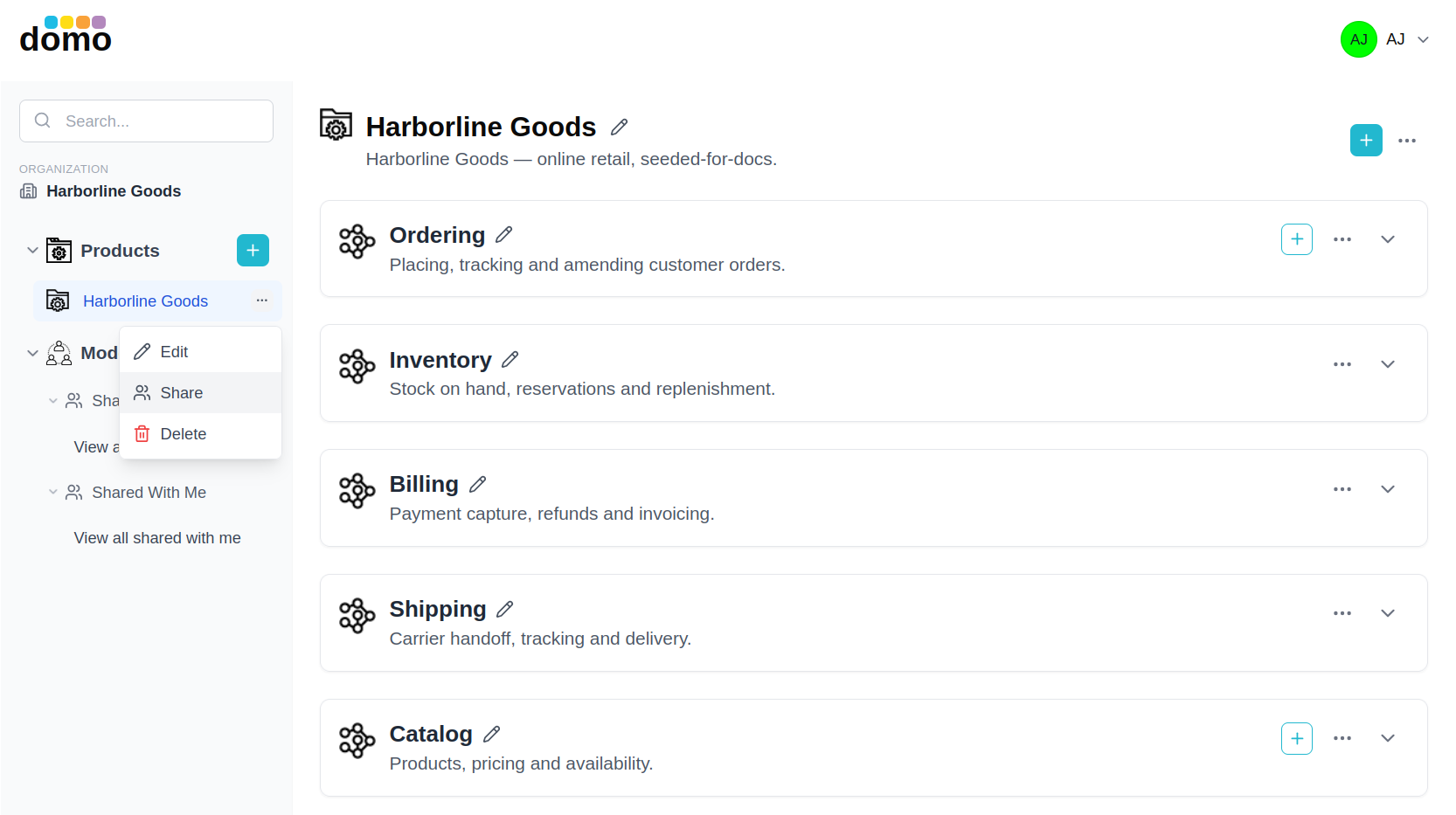
- Products: every product you can see, as a collapsible list. The + button creates a new one (owners and admins only). Hovering a product reveals a ⋯ menu with Edit, Share, and Delete; each entry is enabled only if you actually have that right.
- Model Sharing: two saved views: Shared By Me and Shared With Me.
- Your name, email, and avatar sit at the bottom, with a quick sign-out button.
Products and domains
Opening a product shows its domain containers stacked down the page. Each domain container holds the models in that domain and has its own + button (add a model) and ⋯ menu (edit, share, delete).
A product's own header carries the same actions: the pencil to rename or re-describe it, the + to add a domain, and a ⋯ menu for share and delete.
A product can be marked private, in which case only you and the organization's owners and admins can see it. Private products are displayed in the sidebar with a distinct folder icon.
Model cards
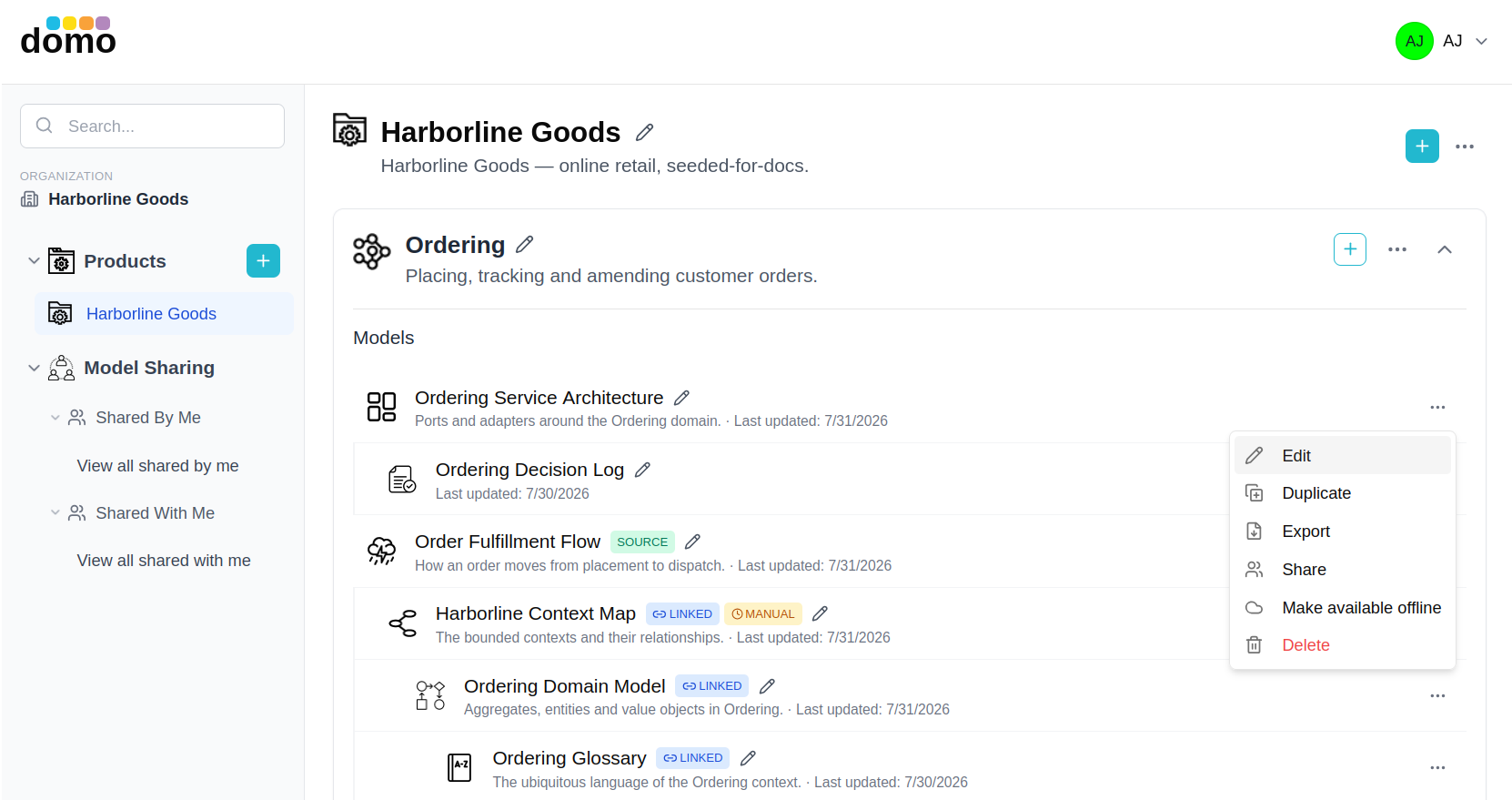
Every model in a domain appears as a card showing its type icon, name, and description. Click the card to open the editor. The card's ⋯ menu carries the per-model actions:
| Action | What it does |
|---|---|
| Edit | Change the model's name and description. |
| Duplicate | Make an independent copy in the same domain. |
| Export | Download the model as a file you can keep or re-import. |
| Import | Bring a previously exported model back in (from the domain's menu). |
| Share | Give named people or the whole organization access. See Sharing and access. |
| Available offline | Keep a local copy so the model opens and edits without a connection. |
| Delete | Remove the model. |
Renaming a model can be done in a few ways: from the card or from the model header inside the editor. Doing so is restricted to an owner, an admin, or the person who created it. Editing a model's content is a separate, broader permission.
Linked models
Some models can created from and linked to others. A Context Map can be generated from an EventStorming model; a Domain Model derived from a Context Map; a Glossary generated from a Domain Model; an ADR log can be attached to an architecture. The dashboard nests those under their source so the relationship is visible at a glance, and a model in manual sync mode shows a pending-changes indicator when its source has moved on.
See Linked models for how the links behave.
Shared By Me / Shared With Me
These two views collect everything crossing a person boundary:
- Shared By Me: products, domains, and models you have shared with someone else.
- Shared With Me: everything someone else has shared with you, including things outside the products you normally browse.
The user menu
The avatar in the top-right corner opens the user menu:
- Profile: your display name, avatar initials and color, or an image URL.
- Account: your organization and plan.
- Members: invite people and manage their roles (owners and admins).
- Settings: application preferences.
- Docs: this documentation, opened in a new tab.
- Sign out.