Getting started
Getting started
DomoModeler is a collaborative modeling tool for software design. You and your team explore a business domain, agree on boundaries, sketch the architecture, and record the decisions. You do all this and more all in one place, in real time.
This page gets you from a fresh account to your first model.
Sign in
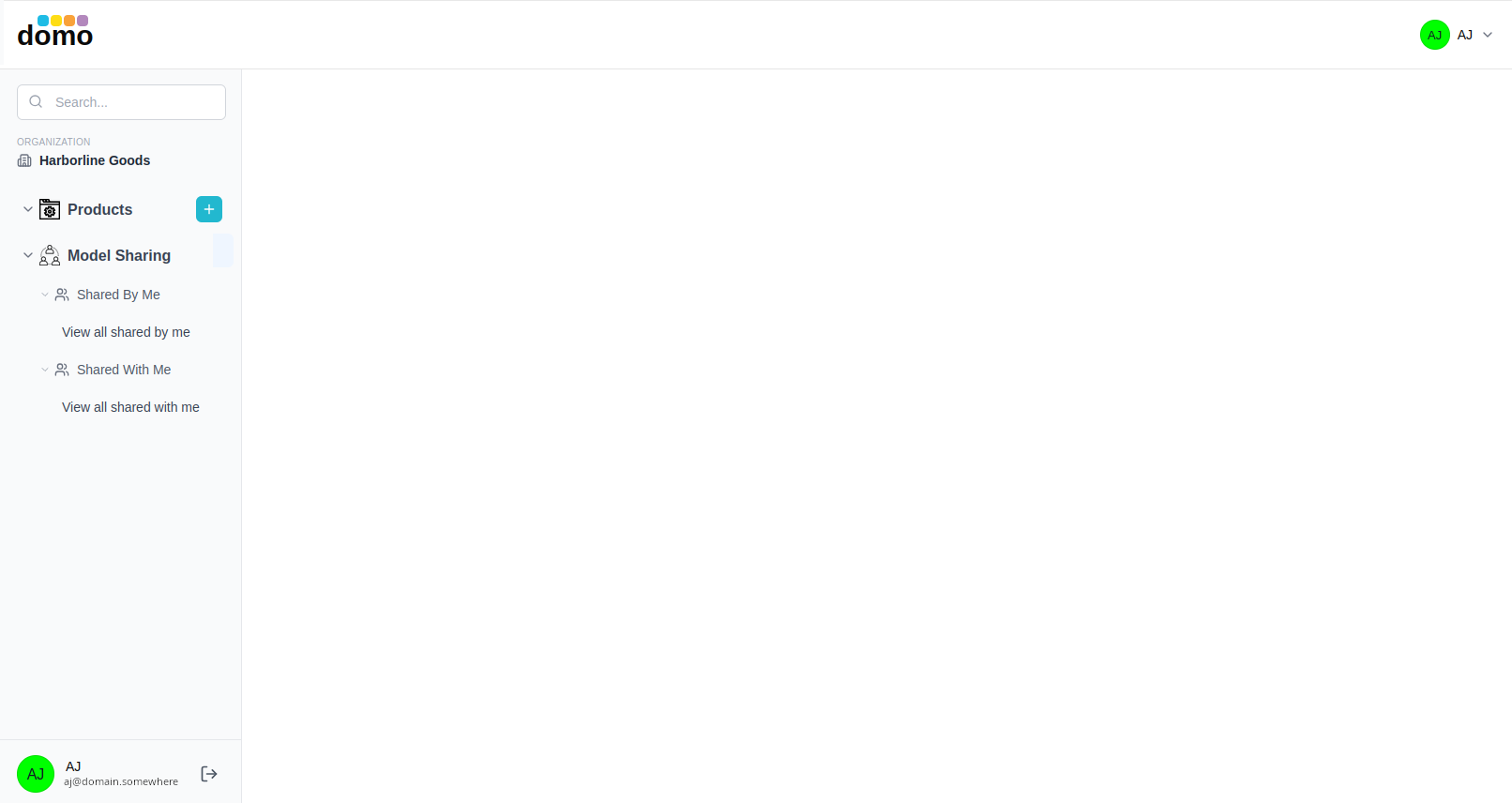
Every person signs in with their own account. After signing in you land on the dashboard, which is the home of everything your organization has modeled.
If you belong to more than one organization, the organization you are working in is shown in the sidebar under Organization, and it is remembered per browser tab. So, you can keep two organizations open side by side without them fighting over which is "current."
How work is organized
DomoModeler arranges everything in three levels:
| Level | What it is | Who can create it |
|---|---|---|
| Product | The system or product you are designing. The top-level folder. | Owner or admin |
| Domain | An area of the product: a business capability, a team's slice, a subsystem. | Owner or admin |
| Model | One model or document: EventStorming, a Context Map, Domain Model, Architecture, an ADR log, and so on. | Anyone with edit access |
Every model lives in a domain, and every domain lives in a product. There is deliberately no way to create a model that floats outside that structure: knowing where a model belongs is half of what makes it useful later.
Create your first model
Next, create your first product, name it and describe it. Then create your first domain inside your new product, and name it and describe it. Now you're ready to create a model.
- In the sidebar, click the + next to Products and name your product.
- Open the product, then click the + in the product header to add a domain.
- Expand the domain and click its + button to add a model.
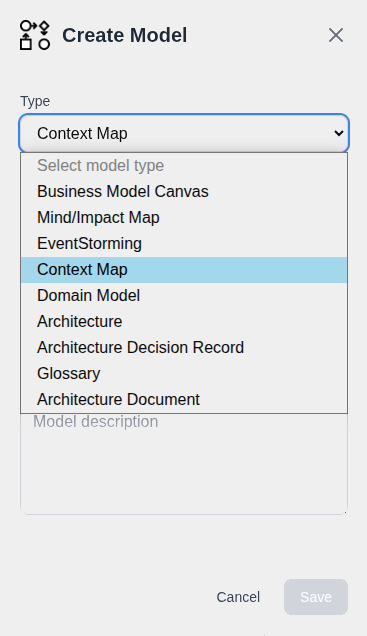
- Choose the model type in the dialog, give it a name and a short description, then click Create.
Some types ask one extra question as you create them. For example, the Architecture type asks which kind of model; a Glossary asks which Domain Model to build itself from; an Architecture Document asks which template to follow. Those choices are explained on each model type's page.
Open a model
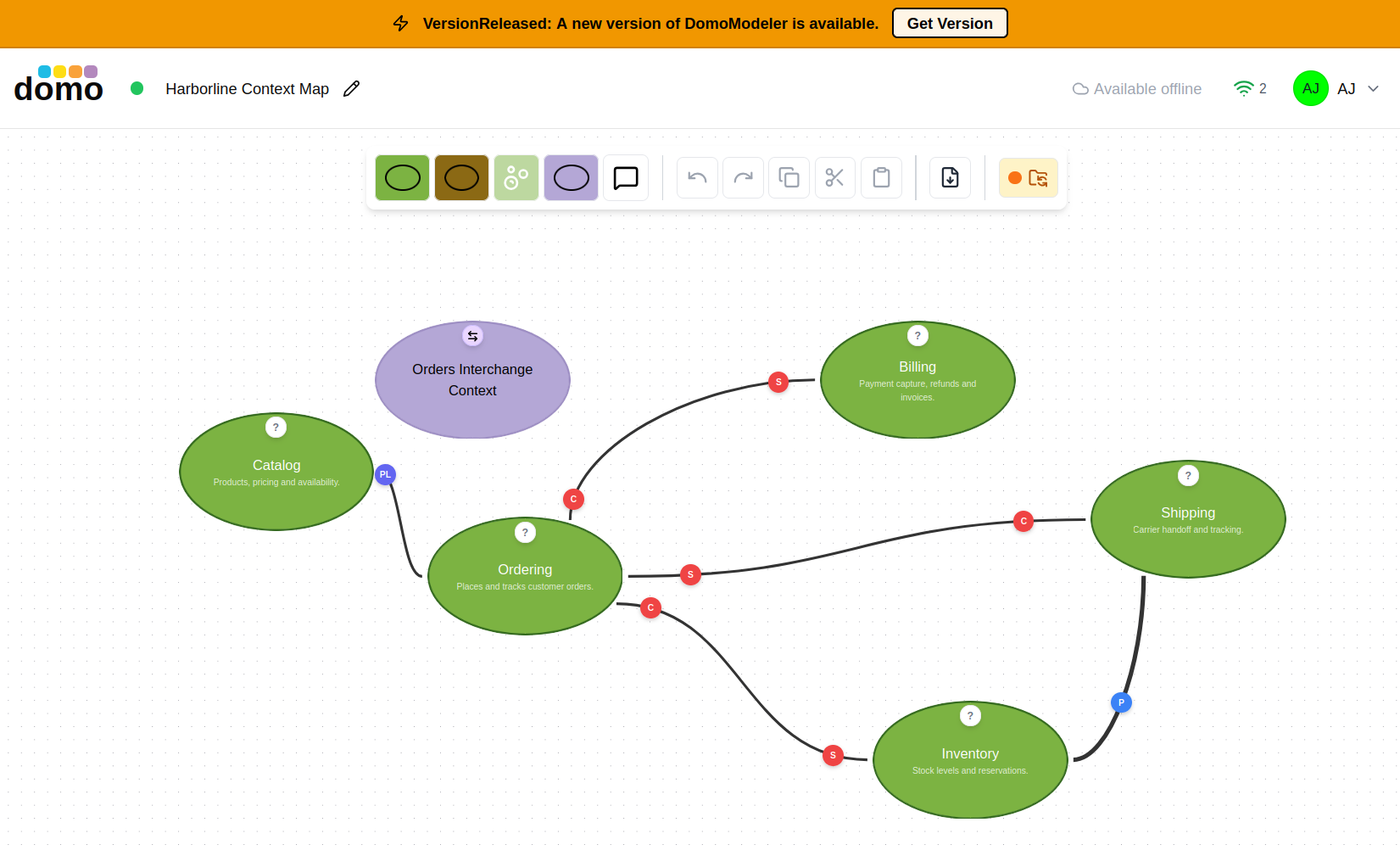
Click a model card in the domain and its editor opens. The editor fills the window: the model header along the top, the toolbar for adding elements, and the canvas or document below.
Your work saves itself as you make changes. The colored dot next to the model name in the header is the save indicator. It's green when everything is written, amber while a save is in flight, red if a save failed.
New versions of DomoModeler
When a new version of DomoModeler is deployed while you have it open, a banner appears offering to get the new version. The editor waits for a moment when you have no unsaved work before it takes you up on it, so an update never costs you an edit in progress.
Where to go next
- The dashboard: everything you can do with products, domains, and models.
- Editor basics: the parts of an editor that are the same everywhere.
- Model types: start with EventStorming, the usual first model.